Capture Continuous Ping Responses with Accurate Date & Time Stamps
Introduction
The ping command is one of the first tools every network administrator reaches for when checking connectivity. But the default output has two big limitations:
- It disappears when you close the window
- It does not show the exact date and time for each reply
Many real-world network issues only appear after hours — random packet loss at 3 a.m., high latency during video calls, or brief outages every few hours. To prove these problems (to your ISP, manager, or ticketing system), you need a log file with timestamps.
This article focuses on one of the most popular and reliable one-line Windows commands that adds real system date and time to every ping line and saves everything automatically to a file.
Why You Need Timestamped Ping Logs
Common situations where this technique is extremely helpful:
- Proving intermittent internet drops to your ISP
- Monitoring link stability overnight or during weekends
- Comparing latency before and after a firewall/router change
- Documenting slow response times during peak business hours
- Creating evidence for application performance tickets
A simple text file with time + ping result is easy to read, search, and attach to emails or support tickets.
The Most Popular One-Line Command
This command is widely shared in networking forums because it works reliably on almost every Windows version (Windows 7, 10, 11, Server editions).
ping -t 1.1.1.1 | cmd /q /v /c "(pause&pause)>nul & for /l %a in () do (set /p "data=" && echo(!date! !time! !data!)&ping -n 2 1.1.1.1>nul" >D:\1.1.1.1.txt
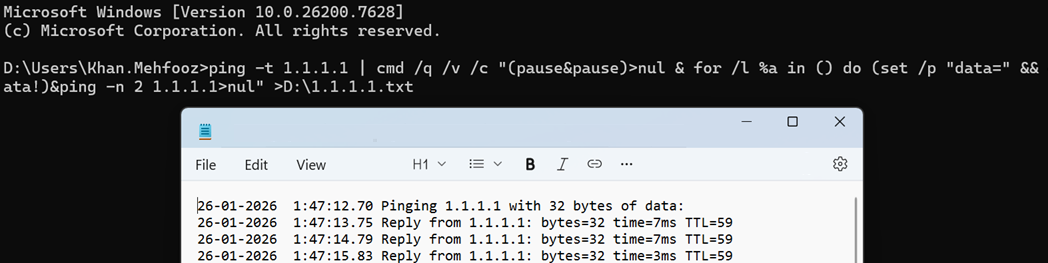
What this command does step by step:
ping -t 1.1.1.1→ runs endless ping to Cloudflare DNS (change to any IP/hostname you want)cmd /q /v /c "... "→ starts a new cmd instance with delayed variable expansion enabledfor /l %a in () do ...→ creates an infinite loopset /p "data="→ reads each line coming from pingecho(!date! !time! !data!→ prints current date + time + the ping line>D:\1.1.1.1.txt→ redirects all output to file on D: drive
How to Use It Correctly
- Open Command Prompt (cmd.exe) — preferably as Administrator
- Decide where to save the file (example: D:\ or C:\PingLogs\)
- Modify the command:
- Change
1.1.1.1to your target (e.g. 8.8.8.8, your gateway IP, server name) - Change the filename and path (e.g.
>"C:\Logs\ISP-ping-log.txt")
- Change
- Paste the full command and press Enter
- Let it run as long as needed (hours, days…)
- Stop it with Ctrl + C
If you want to save to Desktop or Documents, use a path like:
>"%USERPROFILE%\Desktop\ping-8.8.8.8.txt"
Example Variations
Ping your ISP gateway (example 192.168.1.1):
ping -t 192.168.1.1 | cmd /q /v /c "(pause&pause)>nul & for /l %a in () do (set /p "data=" && echo(!date! !time! !data!)&ping -n 2 192.168.1.1>nul" >"C:\Logs\Gateway-ping.txt"
Ping Google DNS with better folder structure:
ping -t 8.8.8.8 | cmd /q /v /c "(pause&pause)>nul & for /l %a in () do (set /p "data=" && echo(!date! !time! !data!)&ping -n 2 8.8.8.8>nul" >"D:\Network Monitoring\2025-Google-DNS-ping.txt"
Tips for Better Results
- Create the destination folder first (Windows won’t create it automatically)
- Run Command Prompt as Administrator if saving to C:\ or protected locations
- Use descriptive filenames (include date or target IP)
- Combine pings to multiple targets (run several cmd windows)
- Open the .txt file in Notepad++ or VS Code — use “Follow tail” to watch live
- Search the log for “timed out” or “time=” to quickly find problems
Very frequent pings (every second) might be blocked or rate-limited by some firewalls or ISPs — the default ping interval is usually safe.
Conclusion
Adding real date and time stamps to continuous ping output is one of the simplest yet most powerful troubleshooting tricks in networking. The one-line command shown above has been helping Windows admins for years because it is short, reliable, and requires no extra software.
Next time you suspect “the internet is unstable”, just start this ping logger and let it collect evidence for you — automatically and silently. When the problem happens, you’ll have clear timestamps showing exactly when replies were lost or delayed.
Keep this command in your notes or as a .bat file — you’ll be surprised how often you come back to it.