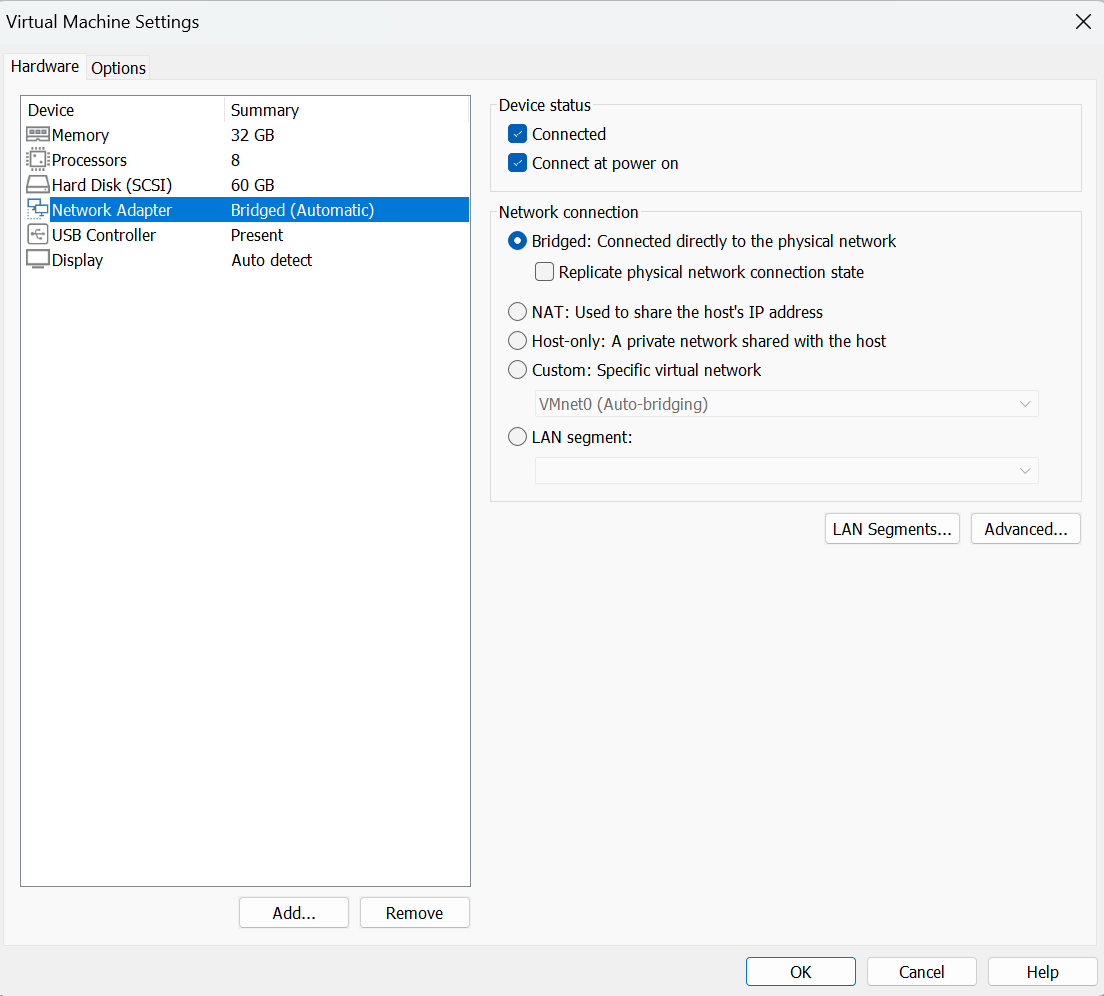
When using VMware Workstation or Fusion to run virtual machines (VMs), selecting the correct network type is essential for security, connectivity, and functionality. Whether you're building a home lab, testing apps, or isolating malware, each network mode serves a unique purpose.
Types of VMware Networks
VMware provides several types of network configurations to suit different use cases:
Bridged Networking (VMnet0) – Connects the VM directly to the physical network.
NAT (Network Address Translation)(VMnet8) – Shares the host’s IP address with the VM for external access.
Host-Only Networking(VMnet1) – Isolated network between host and VM only.
Custom / LAN Segment – User-defined isolated network for multi-VM labs.
No Network – VM operates without any network connectivity (manual setup).
1. Bridged Networking(VMnet0)
Bridged networking connects your VM directly to the host’s physical network. It acts as if your VM is another physical machine plugged into the same network.
How It Works:
Your VM receives an IP address from the same DHCP server as the host (e.g., your home or office router).
It can communicate with other devices on the local network without special configuration.
Use Cases:
Testing how software behaves in a real network environment.
Running servers (web, FTP, etc.) that should be accessible from other devices on the LAN.
Considerations:
Your VM is exposed to the LAN, so proper security settings are important.
May not work on restricted networks like corporate Wi-Fi.
2. NAT (Network Address Translation)(VMnet8)
NAT allows your VM to access the internet through your host's IP address, while remaining invisible to other devices on the physical network.
How It Works:
The VM gets an internal IP from a VMware-managed private subnet.
The host system translates outgoing traffic from the VM using its own IP address.
Use Cases:
Safely browse the internet from a VM.
Use when incoming connections to the VM are not required.
Considerations:
External devices cannot initiate connections to the VM unless port forwarding is manually configured.
3. Host-Only Networking(VMnet1)
Host-only creates an isolated private network between the host and the VM. This mode does not provide internet access unless you configure routing manually.
How It Works:
VMware sets up a virtual network adapter on the host.
Only the host and VMs on this network can communicate with each other.
Use Cases:
Safe environment for testing potentially harmful software.
Useful for internal-only apps like local databases or isolated labs.
Considerations:
No internet access unless manually routed.
Completely isolated from the host’s external LAN or Wi-Fi network.
4. Custom / LAN Segment (Workstation Pro Only)
LAN Segment is a user-defined isolated virtual network. It allows multiple VMs to communicate internally without connecting to the host or outside networks unless configured to do so.
How It Works:
You define named segments and assign VMs to them.
No automatic IP or DHCP unless manually configured.
Use Cases:
Build multi-tier environments, like simulated enterprise networks.
Penetration testing labs or advanced routing/firewall testing setups.
5. No Network (Isolated Mode)
No Network mode means the virtual machine is not connected to any network adapter at all. This fully isolates the VM from all other machines, including the host.
Although VMware doesn’t explicitly offer a "No Network" option, you can easily achieve this by disabling the network adapter:
Open your VM’s settings in VMware Workstation or Fusion.
Go to Network Adapter.
Uncheck both "Connected" and "Connect at power on".
Click OK to save changes.
Use Cases:
Analyzing malware or viruses in a completely isolated environment.
Running standalone applications with no need for network access.
Creating highly secure offline lab environments for sensitive testing.
Comparison of VMware Virtual Network Types
Network Type
Internet Access
LAN Access
VM Isolation
Typical Use Case
Bridged
Yes
Yes
No
Full network simulation, services accessible externally
NAT
Yes
No
Moderate
Internet access with limited exposure
Host-Only
No
No
Yes
Internal testing between host and VM only
LAN Segment
No
No
Yes
Multi-VM lab setups, routing/firewall labs
No Network
No
No
Full
Malware analysis, offline-only applications
Conclusion
Choosing the right VMware network mode is crucial to achieving your intended outcome whether you're replicating real-world scenarios, building secure test environments, or providing safe internet access to your VMs. By understanding the purpose and limitations of each network type, you can design your virtual lab more effectively, enhance security, and streamline connectivity based on your specific needs.